





How to Delete Duplicate Files in Windows 11: Step-by-Step Guide
Updated on December 15, 2025
 374
374
 0
0


374
0
No robots used,
this article has been written and edited by our team under strict editorial guidelines.
Key Takeaways
There are three ways to delete duplicate files in Windows 11: using duplicate file finder software (easy and quick), File Explorer (time-consuming), and PowerShell (for advanced users only).
Handling duplicate files is easy if you choose a suitable method.
It's important to keep file safety in mind while removing duplicates. By following instructions in this article, you can remove them safely.
Duplicate files take up storage space on your computer and can cause disorganization. In this article, I will show you how to easily and reliably delete duplicate files in Windows 11, whether they are in a single folder or scattered across multiple locations.
I will discuss three methods and provide step-by-step instructions for each. You can choose the method that best suits your needs.
How to use software to delete all duplicate files at once in Windows 11
This method uses dedicated software called Cisdem Duplicate Finder, which is the safest and easiest (due to the process being almost full automatic).
Cisdem Duplicate Finder automatically and accurately identifies all duplicate files in your selected folders, such as duplicate images, videos, audio files, and documents. It then displays detected duplicates for you to view and automatically selects all duplicates for one-click deletion while keeping your original files unselected (hence untouched).
The software doesn't allow you to scan system folders and program folders, preventing you from deleting crucial files. It also allows you to exclude important subfolders when scanning a folder. Deleted duplicates are sent to the Recycle Bin, making it easy to recover files when needed. Therefore, the software provides utmost safety during the entire process.
1. Download and install Cisdem Duplicate Finder on your PC. Open it.
 Free Download Windows 10 or later
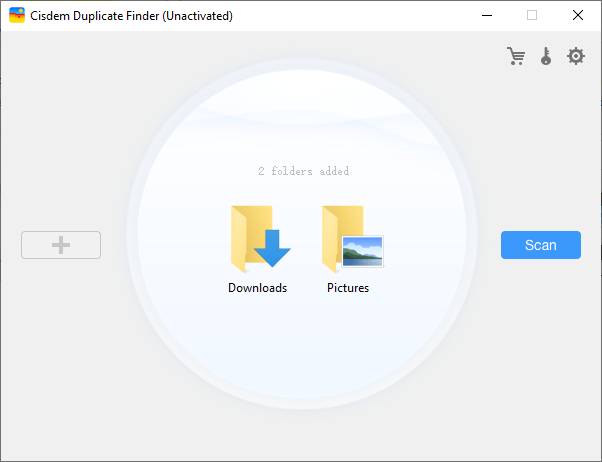
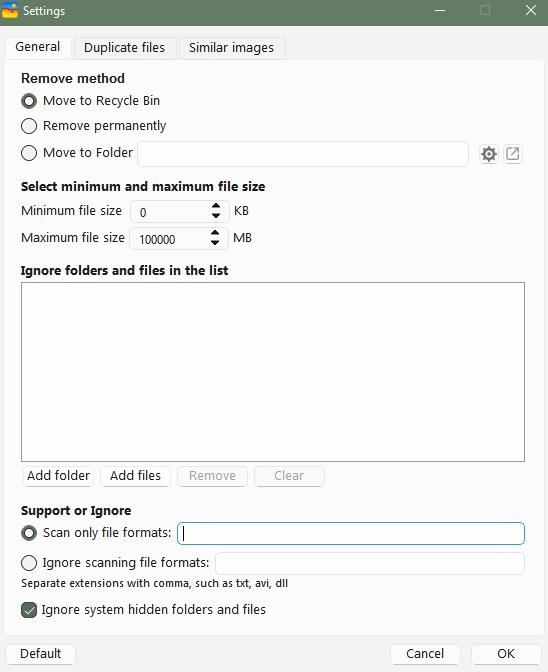
2. Drag one or more folders into the software. Click Scan.
Note
Cisdem Duplicate Finder supports finding duplicate files within and across multiple folders.
(Optionally, click the Settings icon in the top right corner to exclude subfolders and perform other configuration as needed.)
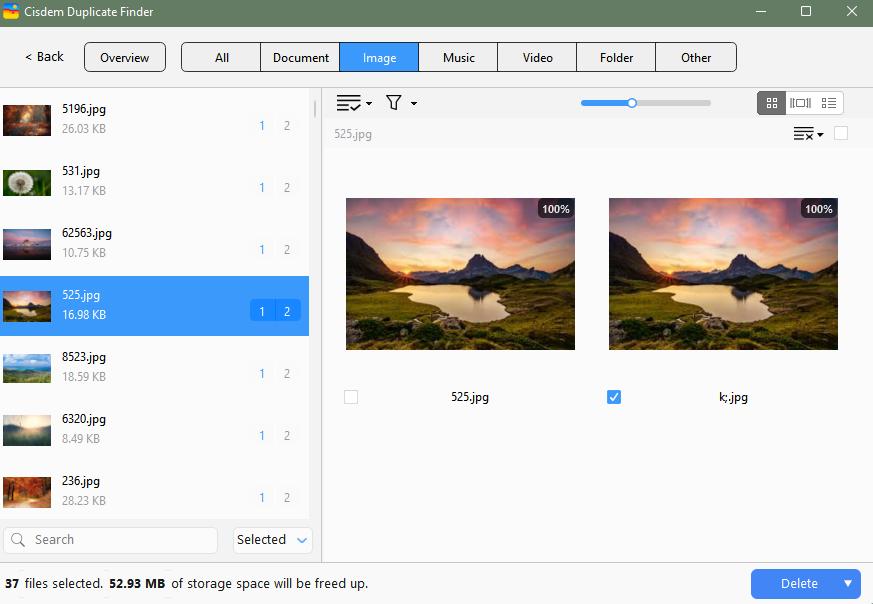
3. It’ll show you search results soon and categorize the found duplicates by file types. You can compare the duplicates side by side, and view their details such as file names, file size, location, resolution, and more.
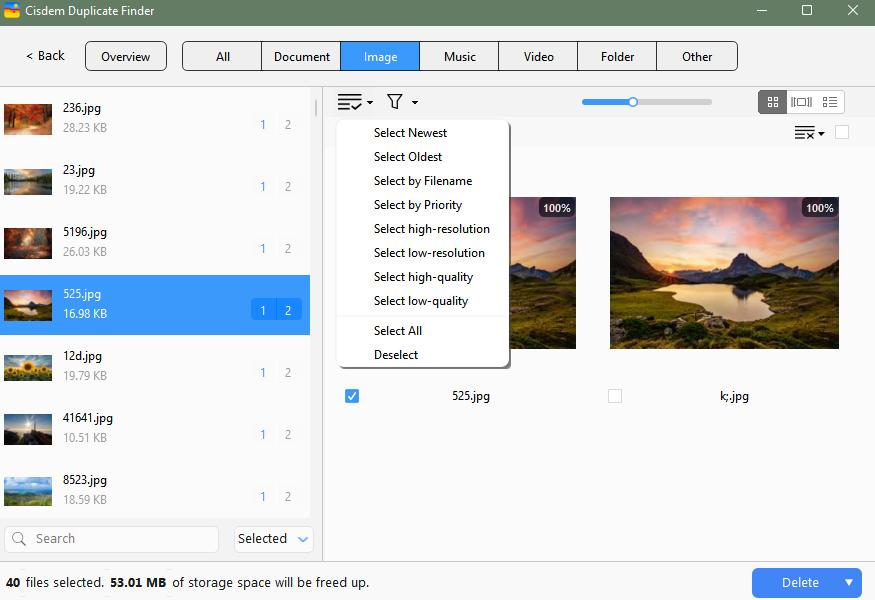
4. It automatically selects all but one file for removal in each group of duplicates. Also, you can choose a desired selection rule to help you mass select files to remove, such as “Select Oldest”.
5. When you are sure that unwanted duplicates are selected, click Delete and then confirm the deletion.
How to use File Explorer to remove duplicate files individually
If you think that you don't want to use third-party software to help you manage duplicate files in your Windows 11, you can try this method, which uses File Explorer (a pre-installed app in Windows for users to access and manage files on their computers).
With File Explorer, you can search for files based on your needs, such as files that share a same name or similar name. And it also lets you sort files in the order you need.
However, this method cannot delete all duplicate files in Windows 11. It is more suitable for those who need to search for duplicate files in a certain folder and the number of files is not large. The process is far more time-consuming compared to Method 1.
1. Type indexing options on the Windows search bar. Open the Indexing Options app.
2. Click the Modify button in the bottom left corner.
3. On the next window, click Show all locations.
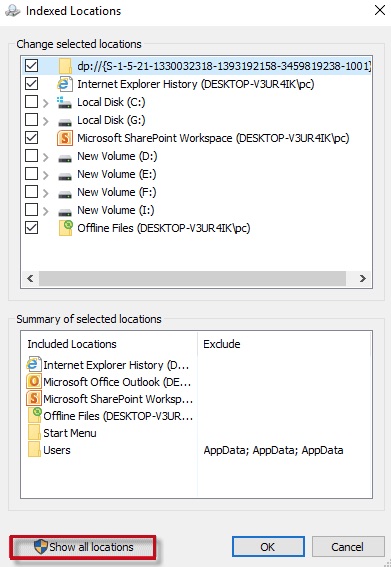
4. Check the all boxes under Change selected locations. Click OK.
5. Press Windows + E keys on your keyboard to open the File Explorer.
6. Open the Users folder by going to This PC > Local Disk (C:) > Users.
7. Click the View tab at the top of the window. Select Preview pane.
8. In the Layout section, select Details. If you want to search for duplicate images in Windows 11, select Large icons.
9. Expand the Sort by option. Select Size and Ascending.
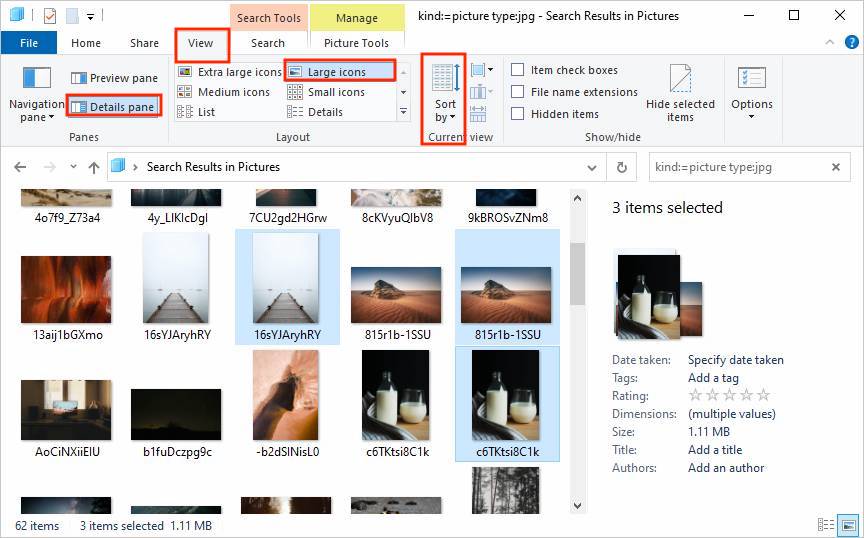
10. Go to the search bar in the upper right corner of the window and type in the extension of the file you want to find, such as jpeg, mp3, doc, exe, etc.
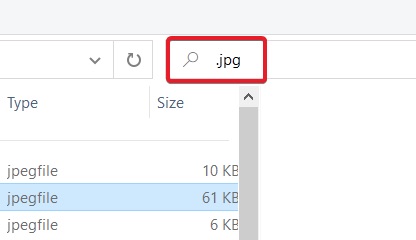
11. Now you can manually identify duplicate files on your Windows PC and remove them one by one. Pay attention to the files that have the same file size or have "Copy" in the file name. Control-select the unwanted files. Right-click on them and choose Delete.
The deleted duplicates will be moved to the Recycle Bin, so you can easily restore them if needed.
How to delete duplicate files in a folder in Windows 11 using PowerShell
This method is for tech-savvy users only. PowerShell is a program from Microsoft. It is used to automate tasks and simplify configurations in the Windows ecosystem. It can also be used to search for duplicate files by calculating the hash value of the files.
I have successfully used this tool to find all duplicate files in the Document folder on my Windows 11. But I would not use it to find duplicate files in some important folders. It does not allow users to preview files before deleting.
1. Type PowerShell on the Windows search bar. Open it.
2. Type cd followed by the folder location where you want to find duplicate files. For example,
cd C:\Users\Administrator\Documents
3. Hit Enter.
4. Paste the command below, which is for calculating the hash of the files.
Get-ChildItem -Recurse | Get-FileHash | Group-Object -Property Hash | Where-Object { $_.Count -gt 1 } | Select-Object -ExpandProperty Group | Select-Object -ExpandProperty Path
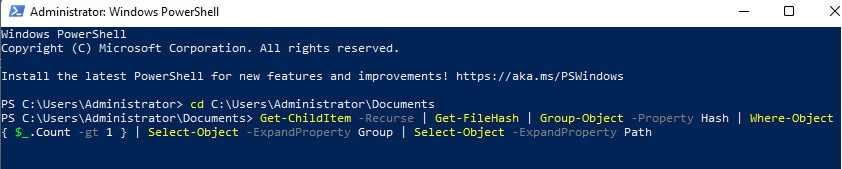
5. Hit Enter.
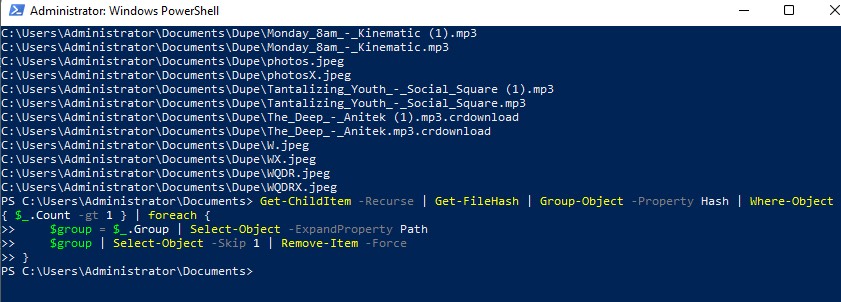
6. Then it will list all exact duplicate files with the same hash value in this folder. You can open these files in File Explorer according to the file location and delete them one by one manually after previewing. Alternatively, use the following command to automatically delete all duplicate files.
Get-ChildItem -Recurse | Get-FileHash | Group-Object -Property Hash | Where-Object { $_.Count -gt 1 } | foreach {
$group = $_.Group | Select-Object -ExpandProperty Path
$group | Select-Object -Skip 1 | Remove-Item -Force
}
Important
With this step, duplicate files will be deleted permanently, which means you can't recover them unless you use an efficient recovery software. Therefore, use caution with method 3.
FAQs
Does Windows 11 have a built-in duplicate file remover?
No. Windows 11 doesn't have a built-in tool for this purpose. That being said, Windows 11 come with apps that can be used to manage duplicates (methods 2 and 3), but its process can be time-consuming or complex.
How do I delete all duplicate files on my computer?
You should not delete all duplicate files on your computer, since duplicates in your system folders and program folders are essential for keeping your computer and apps running properly.
To remove all duplicate files from folders containing your personal files (such as Pictures and Documents), you can use Cisdem Duplicate Finder.
Conclusion
Deleting duplicate files frees up local storage space for new files and makes it easier for you to find files you need. This article describes different methods for deleting duplicate files in Windows 11. Method 1 is suitable for all users, whether you are a computer novice or a professional user. Both method 2 and method 3 allow you to remove duplicate files for free.

Written by
Sarah Miller
With a passion for tech and writing, Sarah joined Cisdem, where she focuses on creating articles about using utility tools to enhance file management and simplify contact management.

Approved by
Adrian Li
Adrian Li is Cisdem’s Chief Engineer and serves as the editorial advisor for Duplicate Finder and ContactsMate. His work and insights have been featured in leading tech publications such as Fossbytes, TUAW, Redmond Pie, SafetyDetectives, and BestForAndroid.
Loved the article, share!
Comments (0)
Leave a Reply
March 06, 2025
How to Mass Delete Duplicates in iTunes All at Once
September 16, 2025
Delete Duplicate Files on External Hard Drive on PC and Mac: Steps and Tips
November 18, 2025
How to Find and Delete OneDrive Duplicate Files All at Once
December 05, 2025
How to Find and Delete Duplicate Files with Different Names