


How to Find and Delete Duplicate Files with Different Names
 9.7K
9.7K
 3
3


Key Takeaway
File names are generally not important in identifying duplicate files. With Cisdem Duplicate Finder, which compares file contents and ignores file names, you can accurately find duplicate files that have different names on your Windows PC, Mac, iPhone, or Android device.
In many cases, duplicate files are unnecessary. You don’t need two copies of the same photo of your cat, unless you are keeping the extra one as a backup.
When organizing your files, if you spot two files sharing the same name, you can take a closer look and delete any identified duplicate. But what about duplicate files with different names? These can be harder to find.
In this article, I’ll show you how to easily, quickly and safely find and remove duplicate files on your device, even if they are differently named.
 Cisdem Duplicate Finder
The Best Duplicate File Finder & Remover
- Accurately identify duplicate images, video, audio, documents, and others by comparing file contents, regardless of file names
- Find duplicate files on computers, phones, external storage devices, and cloud drives
- Work with folders, drives, iTunes, and Mac's Photos
- Let you view duplicates in 3 ways, with side-by-side photo previews
- Automatically select all but one file for deletion in each set of duplicates
- Allow manual selection of files
- Also offer 8 preset rules (e.g., Select Newest) for mass selections
- Easy to use for everyone


Steps: How to easily find duplicate files with different names
Using software Cisdem Duplicate Finder is the easiest way to handle those duplicates. Below you can find the instructions for different devices.
On Windows or Mac
Step 1. Install Cisdem Duplicate Finder.
Download and install the tool on your computer. Open it.
 Free Download Windows 10 or later
  Free Download macOS 10.11 or later
Step 2. Add the location(s) to scan for duplicate files.
To find duplicate files in a folder or drive, add location using drag and drop or the Add button. (The Add button is recommended on Mac.) To find duplicate files within and across multiple locations, add these locations.
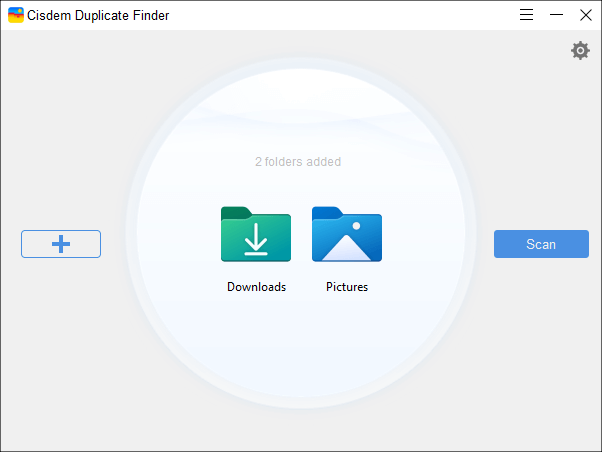
To scan a location on an external hard drive or in a cloud storage service, please first connect the external drive to your computer or install and set up the service’s desktop app.
Step 3. Start the scan.
Click the Scan button, and Cisdem Duplicate Finder will start comparing files by their contents and identifying those with exactly identical content as duplicates.
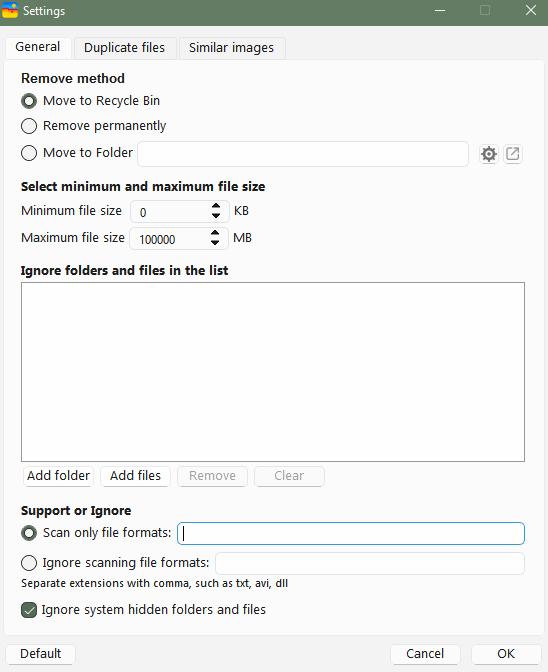
Optionally, you can go to Settings  for customization before scanning.
Step 4. View detected duplicate files.
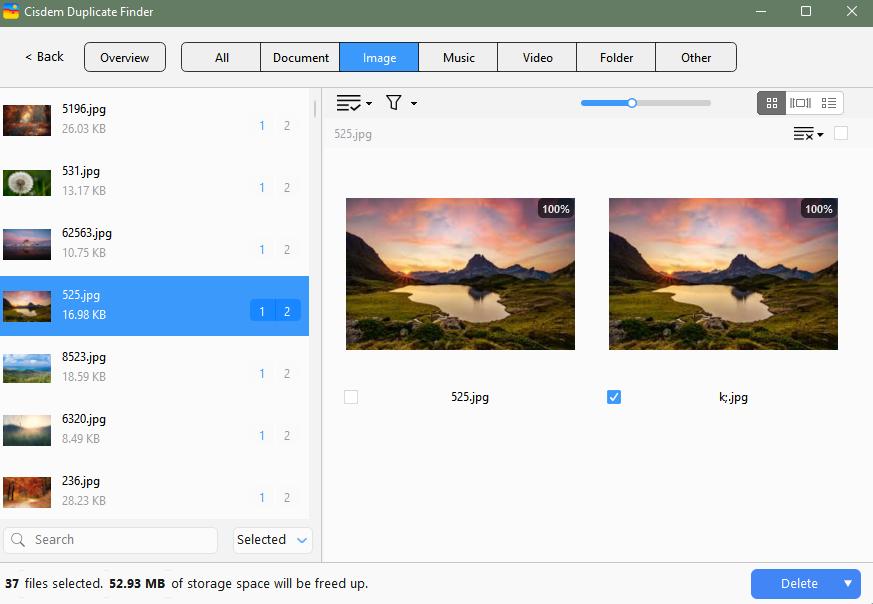
When the scan is complete, the results window will appear, displaying all found duplicate files. You can conveniently view, sort and search them.
Step 5. Select duplicates for removal.
In each set of duplicate files, the tool has automatically selected all but one file for removal. You can manually adjust the selection if needed.
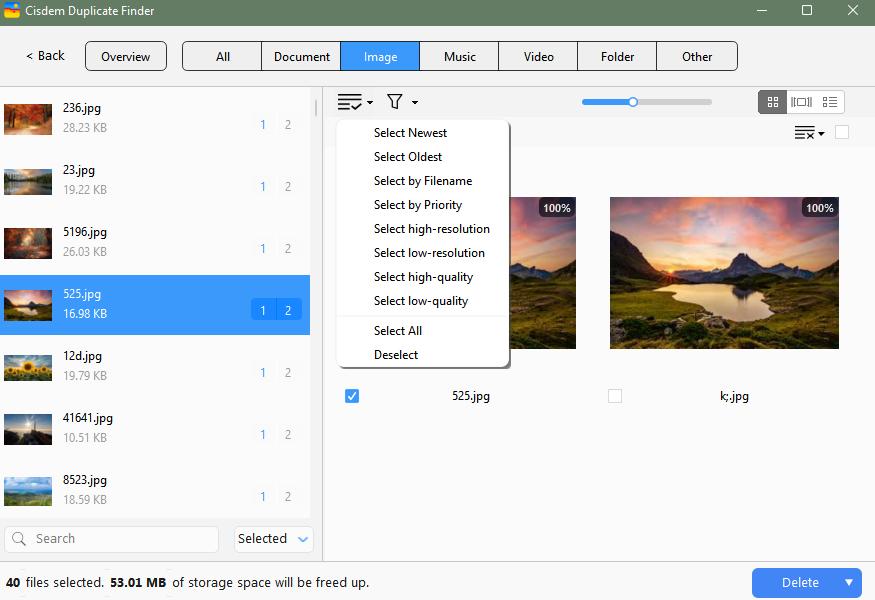
In addition, there are preset rules for mass selections. On the left side of the results window, highlight the sets to which you want to apply a rule. Next, choose a preferred rule. For example, choosing the Select Newest rule will select all but the oldest file for deletion in each set.
Step 6. Delete all duplicates at once.
Click the Delete button to remove all the selected duplicate files. Confirm the deletion.
By default, the deleted files will go to the Recycle Bin (on Windows) or Trash (on Mac). And this allows easy restoring of files when needed.
On Android or iOS
Step 1. Get the app.
Install the duplicate file finder on your Android device, iPhone, or iPad from the app store.
Note
Cisdem Duplicate Finder on iPhone or iPad supports finding duplicates in the Photos app only.
 GET IT ONGoogle Play
  Download on theApp Store
Step 2. Start a scan.
Tap Start Scan, and the app will start scanning files across your phone or just the Photos app (depending on your device) and comparing their contents to detect identical files.
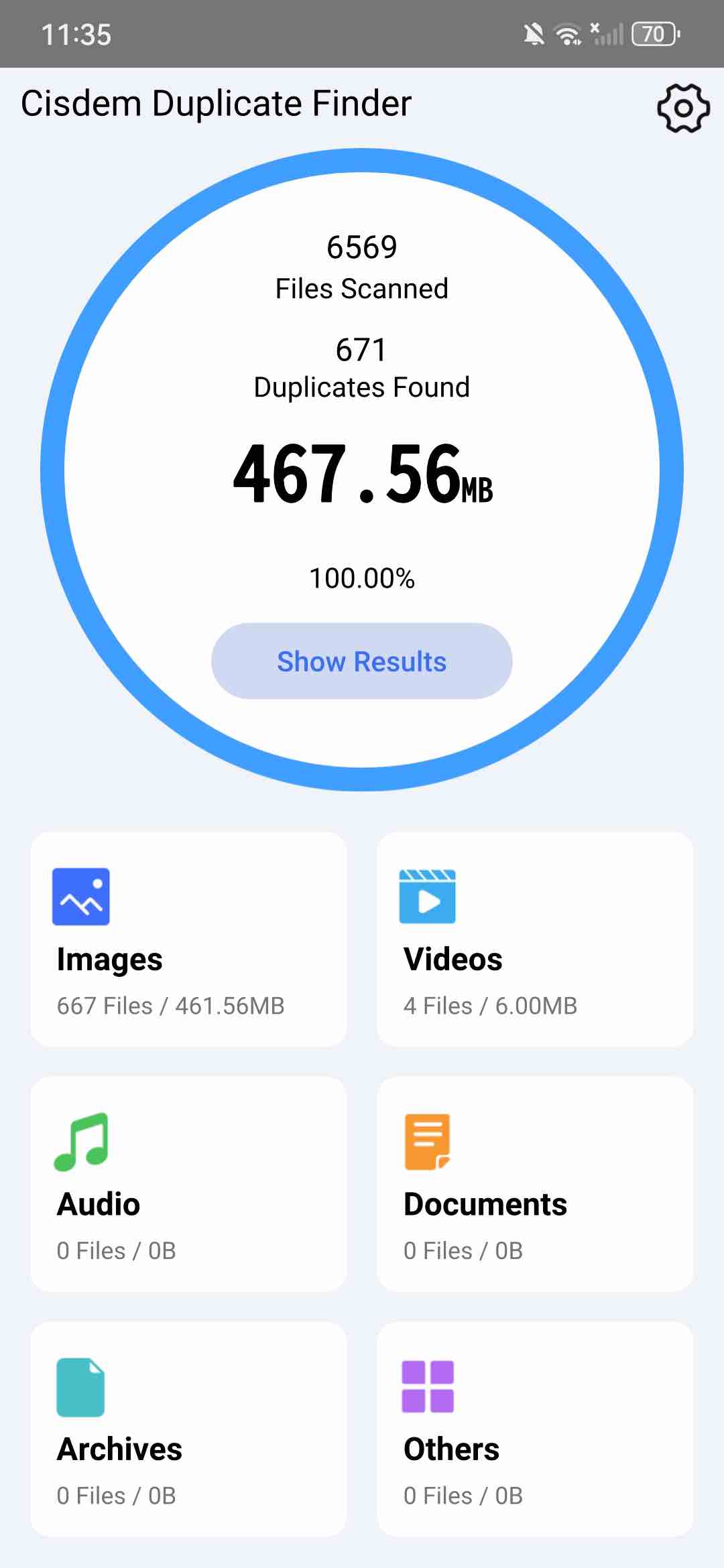
Step 3. View scan results.
When the scan is done, you will see a list of detected duplicates. You can view their information and preview them using the associated apps.
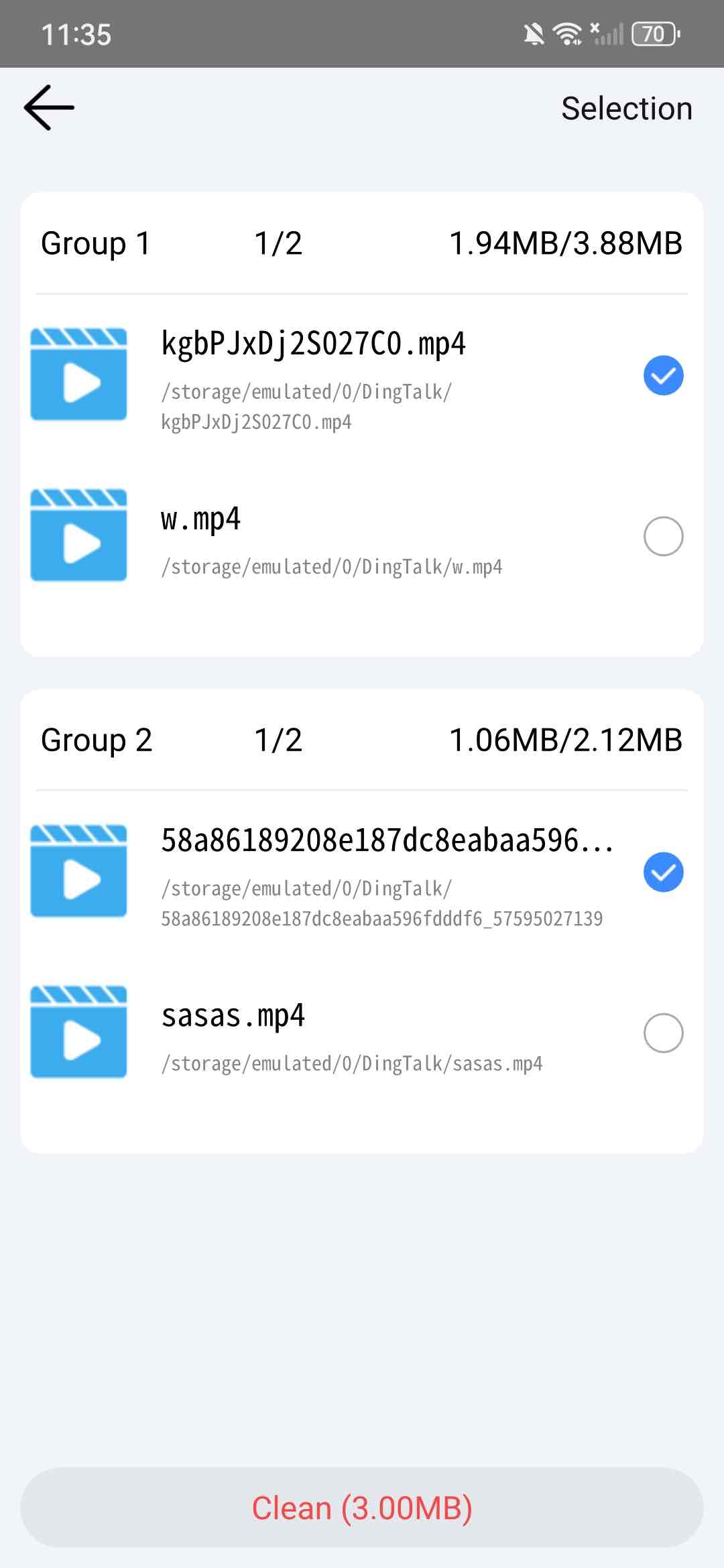
Step 4. Remove duplicates.
With automatic selections and manual adjustments, you can easily make sure that unwanted duplicates are selected for elimination. Then, tap Clean at the top of the screen to delete selected files.
Does the name matter in identifying duplicate files?
What are duplicate files?
A set of duplicate files is two or more files that are exactly identical, regardless of their file names (or simply names). They can share the same name or have different names.
Identify duplicates manually
When you look for duplicate files yourself, I tell you that the name can be helpful. For example, when you see two files that have the name that is called “IMG_0050.jpg” and “IMG_0050 copy.jpg”, you can know from the name that they may be duplicates. But, be careful. If they have completely different names, you are not noticing them.
Identify duplicates automatically
When duplicate file finder software uses algorithms to automatically detect duplicate files, the names don’t matter.
For example, Cisdem Duplicate Finder focuses on comparing hash values of files. Each file has a unique hash value that represents its content. This is just like each person has a unique fingerprint. File names don’t affect hash values. This tool also compares files sizes and types to further ensure accuracy.
Summary
Names can help you spot potential duplicate files in manual identification, but software tools don’t consider names.
Conclusion
Duplicate files! They can pile up as time goes by. They use your storage and they are a mess. It can be good that you clean them up often. But, finding duplicates can be an easy thing to do (especially when they are different in names). It's good that dedicated software can make it easy to identify and remove duplicate files (regardless of their names). And using such tools help you have a clutter-free and organized computer.

With a passion for tech and writing, Sarah joined Cisdem, where she focuses on creating articles about using utility tools to enhance file management and simplify contact management.

Adrian Li is Cisdem’s Chief Engineer and serves as the editorial advisor for Duplicate Finder and ContactsMate. His work and insights have been featured in leading tech publications such as Fossbytes, TUAW, Redmond Pie, SafetyDetectives, and BestForAndroid.
Charlotte Jones
One thing I wish the article covered more is how to handle duplicates in cloud storage(Google Drive, Dropbox). Sometimes these services sync unexpectedly and create duplicates.
John Chen
I have tried a few duplicate finder programs over the years. This one is the best and very simple to use. It successfully found all my duplicates.
Josef Lechle
Using smart folder can locate and delete most of my duplicate files. the professional tool you recommended will be more efficient. thanks for your sharing!